Configure operational agents
Create or refine an automation for orders, bags, transfers or products, then use Agent Settings to control its timing, matching rules, actions and execution safety.
Overview
Create or refine an automation for orders, bags, transfers or products, then use Agent Settings to control its timing, matching rules, actions and execution safety.
Choose the right workspace
Use the everyday AI assistant to ask questions, find information and propose supported order changes. Review its cited guide or record link and check the confirmation card before approving an order action.
AI Website is a separate company workspace for creating and improving the public company website. Its saving and publishing controls have their own effects: saving changes to a published website can update it immediately.
Operational agents are ongoing automations with conditions, timing and an execution mode. Preview their matching work, review the actions and choose whether changes are simulated, require approval or run automatically where supported.
Steps
- Open Agents and search the existing list before adding a new agent, so two agents do not handle the same task unintentionally.
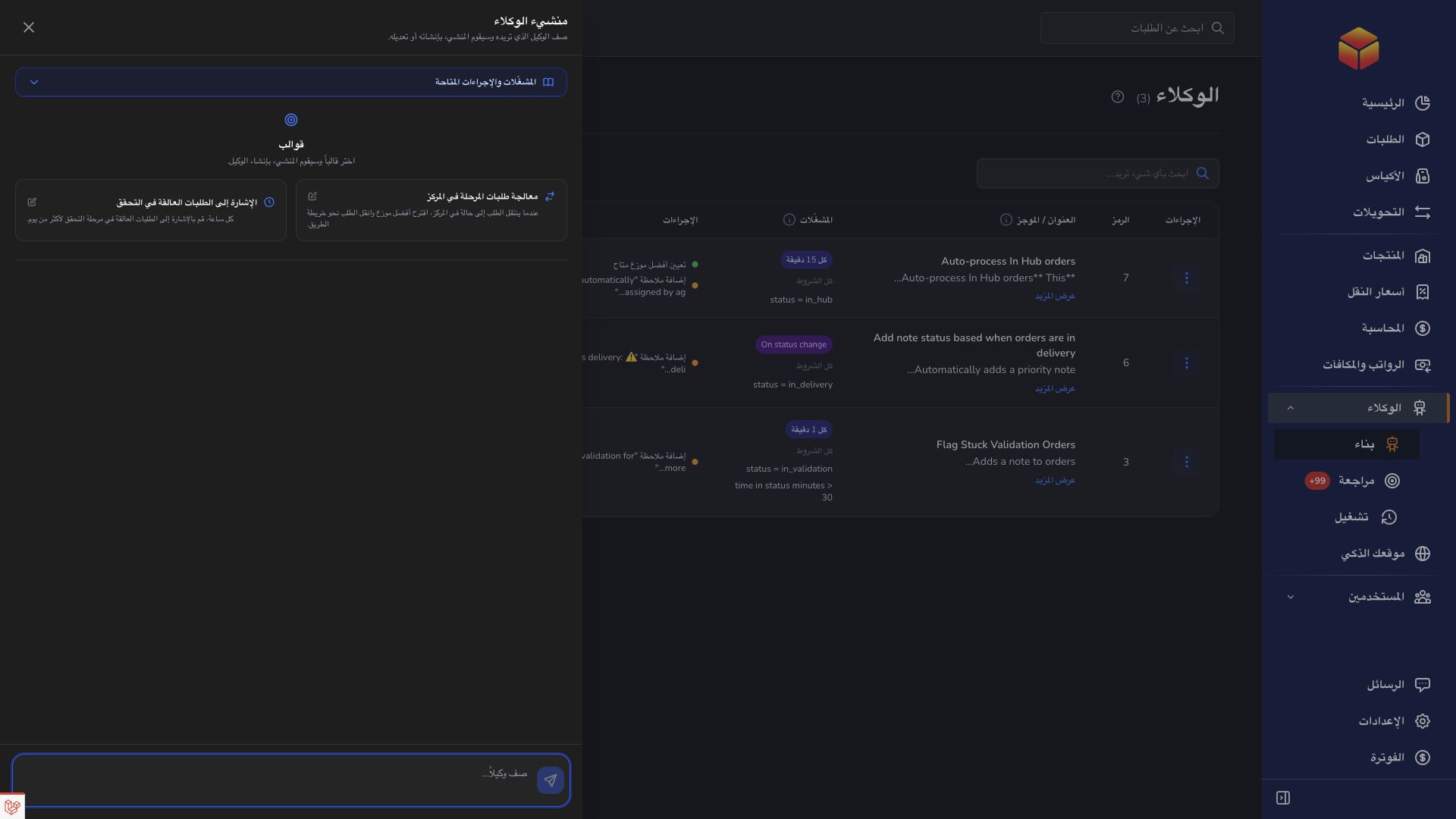
- Choose New agent and describe the subject, the exact conditions, the desired actions and when the check should happen.
- Keep the agent disabled while you review its description. From its Actions menu, choose Update to open Agent Settings.
- Confirm the title and status, choose the execution mode, then inspect the subject, trigger, conditions, actions and Stop on failure setting.
- Save the settings and resolve every message shown. Start with Dry run or Review required instead of Automatic.
- Select Test, leave Execute actions for real unchecked and review the matches. Enable the agent only after the matched records and suggested actions are correct.
Describe a clear operational goal
An operational agent follows the saved rules you give it. For example, ask it to identify orders waiting at a hub without an assigned transporter, or products whose stock has fallen below a chosen quantity. Specify the waiting period, status, location or stock threshold instead of saying only “handle delayed work”.
The available subjects are orders, bags, transfers and products. Their conditions and actions differ. An order can have a transporter assigned, a delivery or return requested, its status changed or a note added. Bag, transfer and product actions include the supported creation or update choices shown for that subject. Creating a record is a real business action; it does not automatically carry out the physical movement.
Read the Agent Settings safety controls
The header identifies the agent you are editing and shows whether it is Enabled or Disabled. The Status switch controls ongoing checks; it does not run the agent immediately. The list also has a status control, so confirm the displayed state again after saving.
Dry run shows which records match without making changes or creating approval requests. Review required creates proposals that a person must approve. Automatic performs only the actions that are allowed to run without approval. If an action needs a person to review it, choose Review required instead.
Choose the subject, timing and matching rules
Choose one subject: Order, Bag, Transfer or Product. The editor shows only the conditions, events and actions supported by that subject. Changing the subject removes incompatible actions, so review the entire Actions section before saving the change.
A scheduled agent checks at the interval you choose. You can limit its active dates or daily hours, or choose Run once. The times follow your company’s timezone. An event agent checks only after one of the selected events occurs; enabling it does not automatically check older records.
Choose All when every condition must match, or Any when one matching condition is enough. Choices such as is empty do not need an extra value, while equals, contains and greater than do. For event agents, the settings may offer extra information related to the event. A broad Any group can match much more work than intended.
Review actions and their extra conditions
Actions run in their displayed order. Check every target status, destination, transporter, vendor, note and field value. Only run when adds an extra All or Any condition group to one action without changing the agent’s main match. Stop on failure prevents later actions from continuing after an earlier action fails; it does not undo actions that already succeeded.
Use Review required for transporter assignment, status changes, updates and record creation. Automatic mode is currently limited to adding a note or requesting delivery or return. A delivery or return request records the request; it does not itself complete delivery or move an order to another status. Resolve unavailable selections, missing records and other messages before continuing.
Example: review In Hub orders safely
If your agent is named “Auto-process In Hub orders,” use Order as the subject and match the exact In Hub status. Add narrower conditions such as an empty delivery transporter, a destination or a minimum time in status when they reflect the intended workflow. Choose an order event when the rule should react to a new status change, or a schedule when it should also find orders that were already waiting.
Transporter assignment and status changes require Review required; they are not eligible for Automatic mode. Preview a known In Hub order, confirm why it matched and inspect the proposed transporter and next status. Then confirm that a wider test includes only the intended orders from your company, enable the agent and monitor Agent Runs and Agent Reviews. Disable and refine it if unrelated orders appear.
Good to know
Saving, enabling and executing are separate operations. Keep the agent disabled until you have previewed its matches, and remember that changing its subject can remove actions that are not valid for the new subject.
Application links
Application links require the appropriate account access. The destination is selected for your signed-in role.