Review, confirm and check AI order actions
Use confirmation cards to review proposed order changes, understand their effects and check the result before continuing.
Overview
Use confirmation cards to review proposed order changes, understand their effects and check the result before continuing.
Choose the right workspace
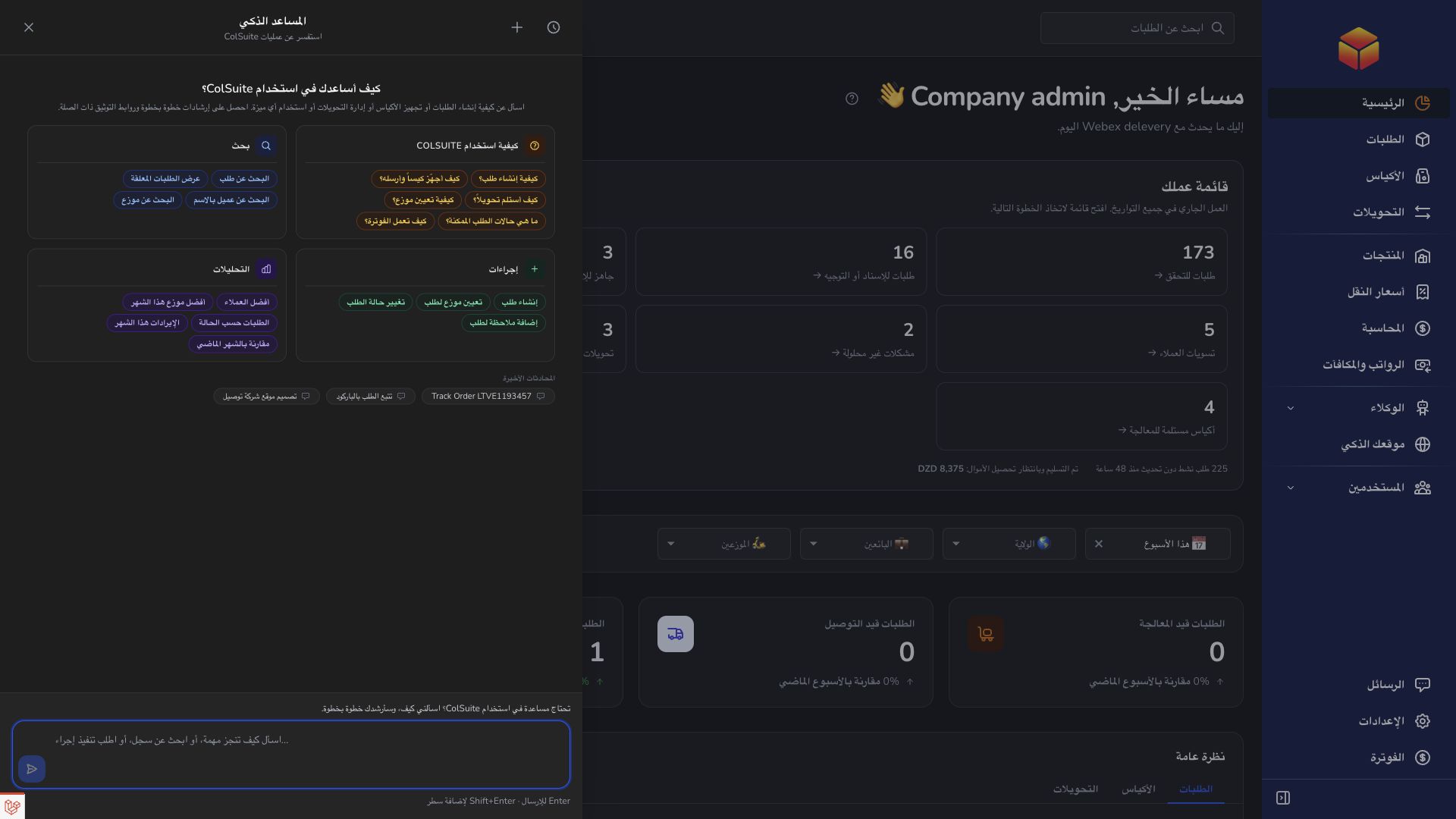
Use the everyday AI assistant to ask questions, find information and propose supported order changes. Review its cited guide or record link and check the confirmation card before approving an order action.
AI Website is a separate company workspace for creating and improving the public company website. Its saving and publishing controls have their own effects: saving changes to a published website can update it immediately.
Operational agents are ongoing automations with conditions, timing and an execution mode. Preview their matching work, review the actions and choose whether changes are simulated, require approval or run automatically where supported.
Steps
- Describe the change, the order barcode and the exact new information. Provide a transporter or vendor name and email when necessary.
- Read the confirmation card and its summary. Check the order, affected person, target status and any warning before choosing Confirm.
- Choose Reject if the proposal is wrong. Ask for a corrected proposal instead of approving an approximate match.
- Wait for the result, then open the order and check its current details or timeline.
What you can ask to change
Depending on your permissions, the assistant can propose creating an order, correcting customer details, changing a status, assigning or removing a transporter, moving an order to another vendor within your company, adding a note, or recording a delivery or return request. Tell it precisely what should change and leave unrelated information out of the request.
For a new order, provide the vendor, customer name and phone, destination, address and subtotal, together with the products when relevant. For an existing order, use its barcode. A phrase such as ‘change the recipient’s phone on order DEMO123’ is an example only: use your actual barcode and correct phone number.
Understand the effect before approving
Assigning a transporter also advances the order to the next delivery stage configured for your company. The order must be received and verified, in the hub stage and outside a bag; StopDesk orders cannot receive this delivery assignment. Removing an assignment clears the delivery and pickup transporters and their associated tariffs while keeping the current status.
A delivery request or return request records the request without changing the order’s status. Correcting the destination region or order type can recalculate delivery and return charges. Moving an order to another vendor changes its ownership; this is different from arranging a physical bag transfer.
Handle expired proposals and failures
Order confirmation cards expire after ten minutes. Ask for a fresh proposal if you waited too long or the order changed in the meantime. Confirmation requires permission to perform AI actions as well as the underlying order operation, and proposals belong to the person who requested them.
An error can mean the record is no longer available, its current stage does not allow the operation, or your permissions are insufficient. Read the message and verify the order before asking again. Adding a note can produce the usual order-note notifications, so review its wording as carefully as any other shared note.
Good to know
These confirmation instructions describe order actions. Website creation and operational-agent management have their own workflows and guides.
Application links
Application links require the appropriate account access. The destination is selected for your signed-in role.