Find bags and read their details
Use the Bags workspace to find a physical bag, follow its route and understand whether it needs preparation, transport, onward forwarding or final verification.
Overview
Use the Bags workspace to find a physical bag, follow its route and understand whether it needs preparation, transport, onward forwarding or final verification.
Understand the bag journey
A bag groups parcels travelling together. Its origin agency and final destination agency identify the overall journey; its current location tells you which team should handle it now. A transfer carries the closed bag to the next stop, which may be an intermediate hub rather than its final agency.
The sending agency prepares the contents. A hub can also prepare bags at its own location and forward received closed bags. The final receiving agency checks individual parcels and completes the bag. Company operators coordinate the locations available to their account; transporters carry assigned transfers. Available actions still depend on your permissions and the bag’s location.
Preparing means the contents are being assembled. Ready to Send means the bag is closed and prepared for movement. Assigned to Transfer means a transfer has been chosen; On the Road means that transfer has departed. Arrived means the bag was received at the next stop. Completed means final handling was recorded. Receiving a bag at a hub does not complete its journey.
Steps
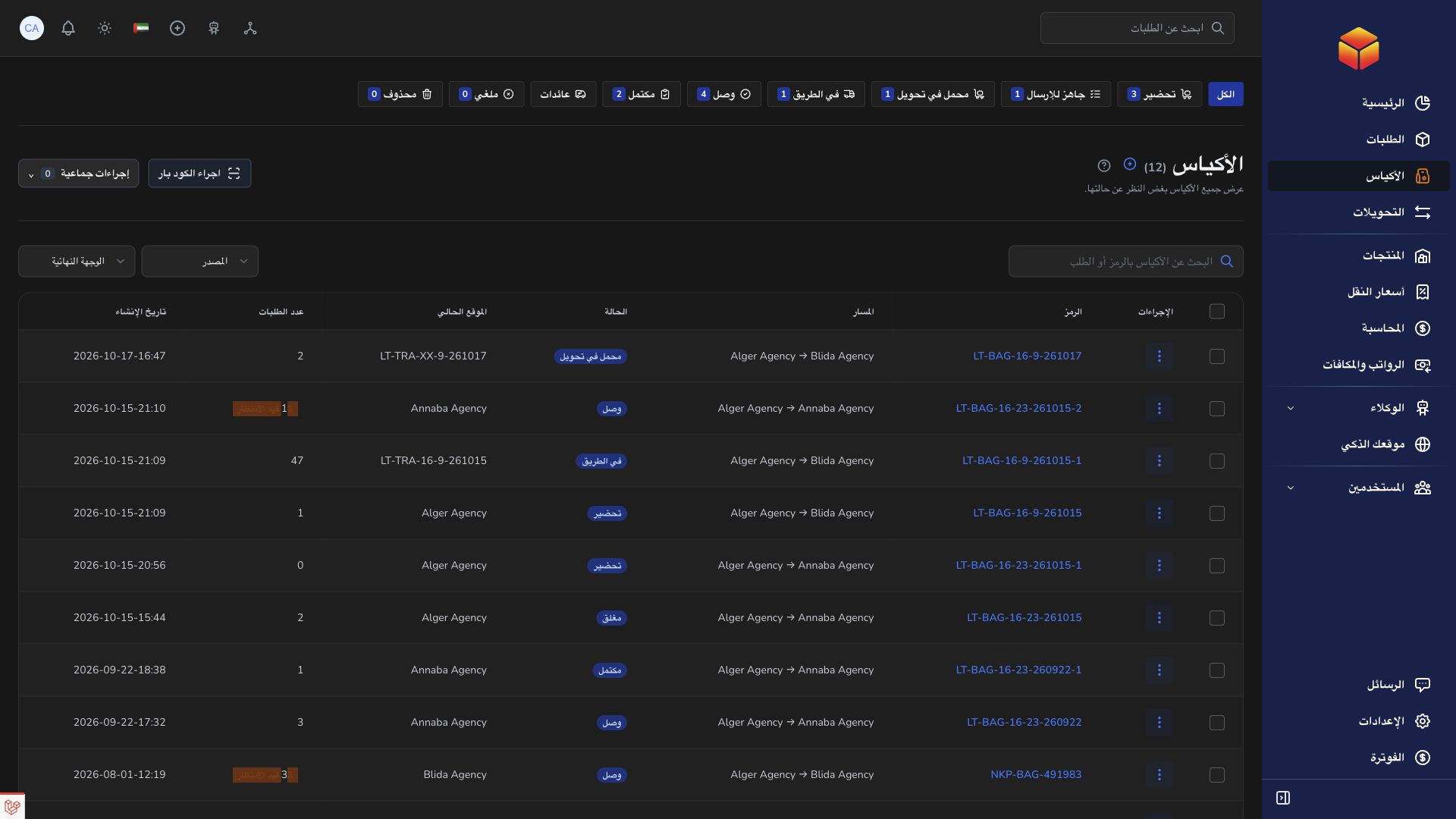
- Open Bags from the navigation menu. Start with All if you are unsure which stage contains the bag.
- Search with the bag code. You can also look for a contained order using its barcode, reference or customer name. Check spelling and try the beginning of the reference if a full entry gives no result.
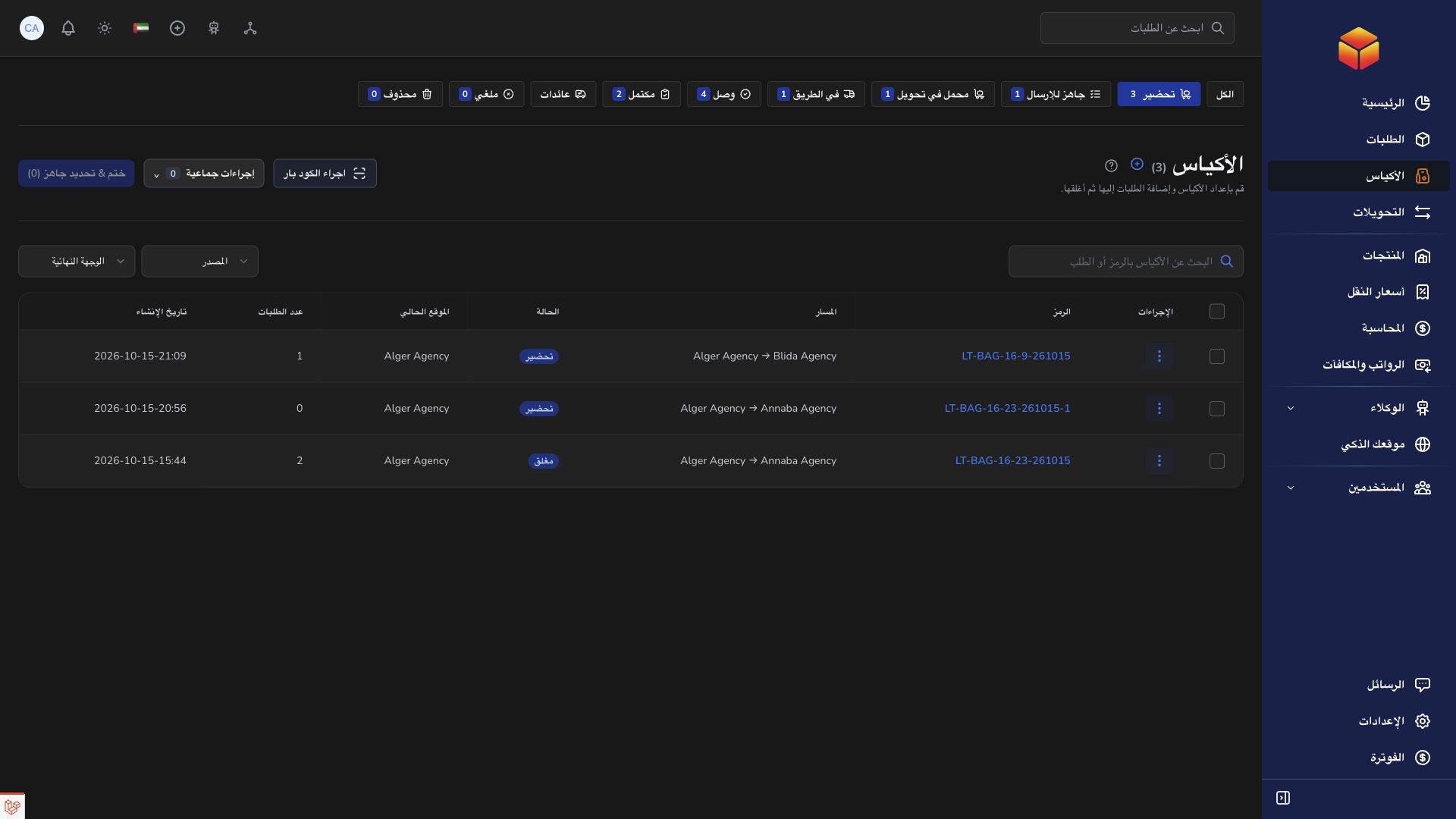
- Choose the relevant work tab: Preparing, Ready to Send, Assigned to Transfer, On the Road, Arrived or Completed. Returns, Cancelled and Deleted are separate views when available.
- Narrow the results with Origin and Final destination. On a phone, open Filters to access these choices. Clearing filters does not necessarily change the work tab: return to All as well when searching broadly.
- Open the matching bag and compare its code with the physical label. Read its origin agency, final destination agency, current location and linked transfer together.
- Review the listed orders, parcel count and any verification results. Open an order’s details when its identity or history needs checking.
- Choose the next action from the bag’s actual stage. A prepared bag needs transport; a bag at an intermediate hub needs forwarding; a bag at the final agency needs parcel verification before completion.
Read the final destination and the next stop separately
For example, a bag prepared for Agency B may travel from Agency A to Hub H, then from Hub H to Agency B. Agency B remains the bag’s final destination throughout. The first transfer ending at Hub H is only one part of that journey.
Use the current location to decide who should act. A bag showing Assigned to Transfer has been allocated to a movement, but that alone does not mean the vehicle has left. Check the transfer’s departure state before treating it as travelling.
When a bag or action is missing
Clear the reference and location filters, check All, and confirm that you are using the bag code rather than a transfer code. Your account may show only bags related to its agency or hub.
A disabled or absent action can mean the bag is at another location, already assigned, not ready, or awaiting parcel checks. Read the message before retrying. Share the bag code, linked transfer and expected location when asking the responsible team for help.
Follow returns without confusing the original bag
Use Returns to find return movements and follow the original-bag or return-bag links shown in details. Keep each bag’s own code when communicating. A return bag follows its own preparation and transport journey; a linked history does not mean parcels have already been received back.
Good to know
Always compare the application record with the physical bag. A list entry, allocation or arrival indicator is not a substitute for checking the label and the actual handover.
Application links
Application links require the appropriate account access. The destination is selected for your signed-in role.