Load, depart and receive a transfer
Reconcile the load before departure, receive only the bags that physically arrive and handle partial deliveries or preparation changes accurately.
Overview
Reconcile the load before departure, receive only the bags that physically arrive and handle partial deliveries or preparation changes accurately.
Understand the transfer journey
A transfer records one movement between an agency or hub and the next agency or hub. The sending team prepares the load, the transporter carries it, and the receiving team confirms the bags that physically arrive. A bag can use several transfers before reaching its final receiving agency.
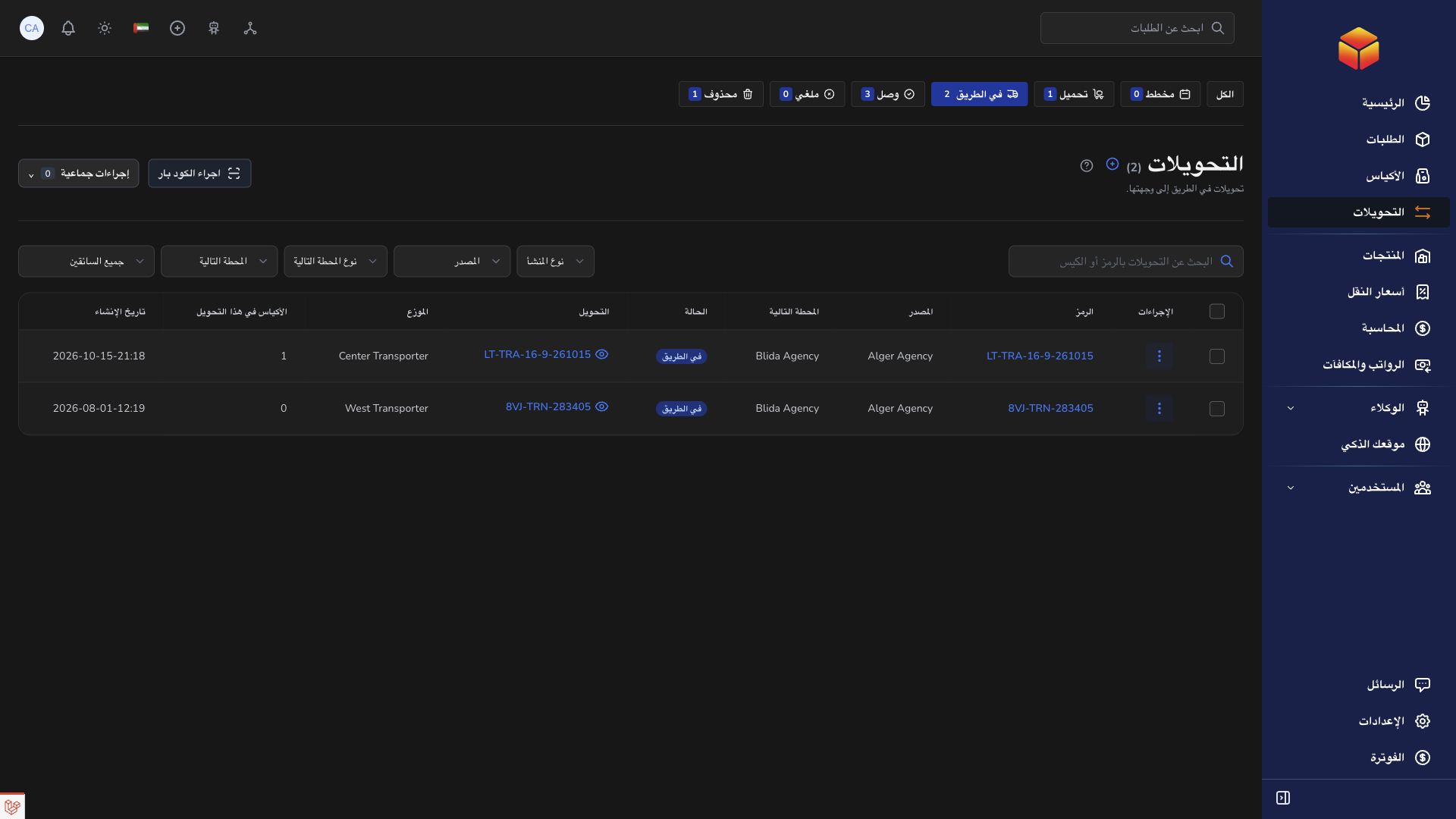
Planned is a saved movement awaiting loading. Loading means its manifest is being prepared. On the Road follows departure. Arrived means every outstanding bag has been received. A partially received transfer remains On the Road until the remaining bags are accounted for through receipt.
Agency and hub teams manage loading at their own departure location and receive at their own destination location. Assigned transporters can inspect their transfer and record permitted loading and departure actions; they do not confirm receipt for the destination team. Your account’s permissions still determine the controls shown.
Steps
- At the departure location, open the transfer and compare each bag code with the physical load. If the plan is still Planned, use Start loading; transfers created with bags may already be Loading.
- Add or remove bags while Planned or Loading if needed. In the scanner, choose Add, Remove or Review before scanning: Review inspects a bag and does not release its parcels.
- Check the final manifest and transporter. Departure requires at least one bag. The departure team or assigned transporter records Depart when the vehicle actually leaves, then confirms the updated On the Road state.
- After departure, stop changing the manifest: bags can no longer be added or removed through the preparation actions. Contact the responsible team if the physical load disagrees with the record.
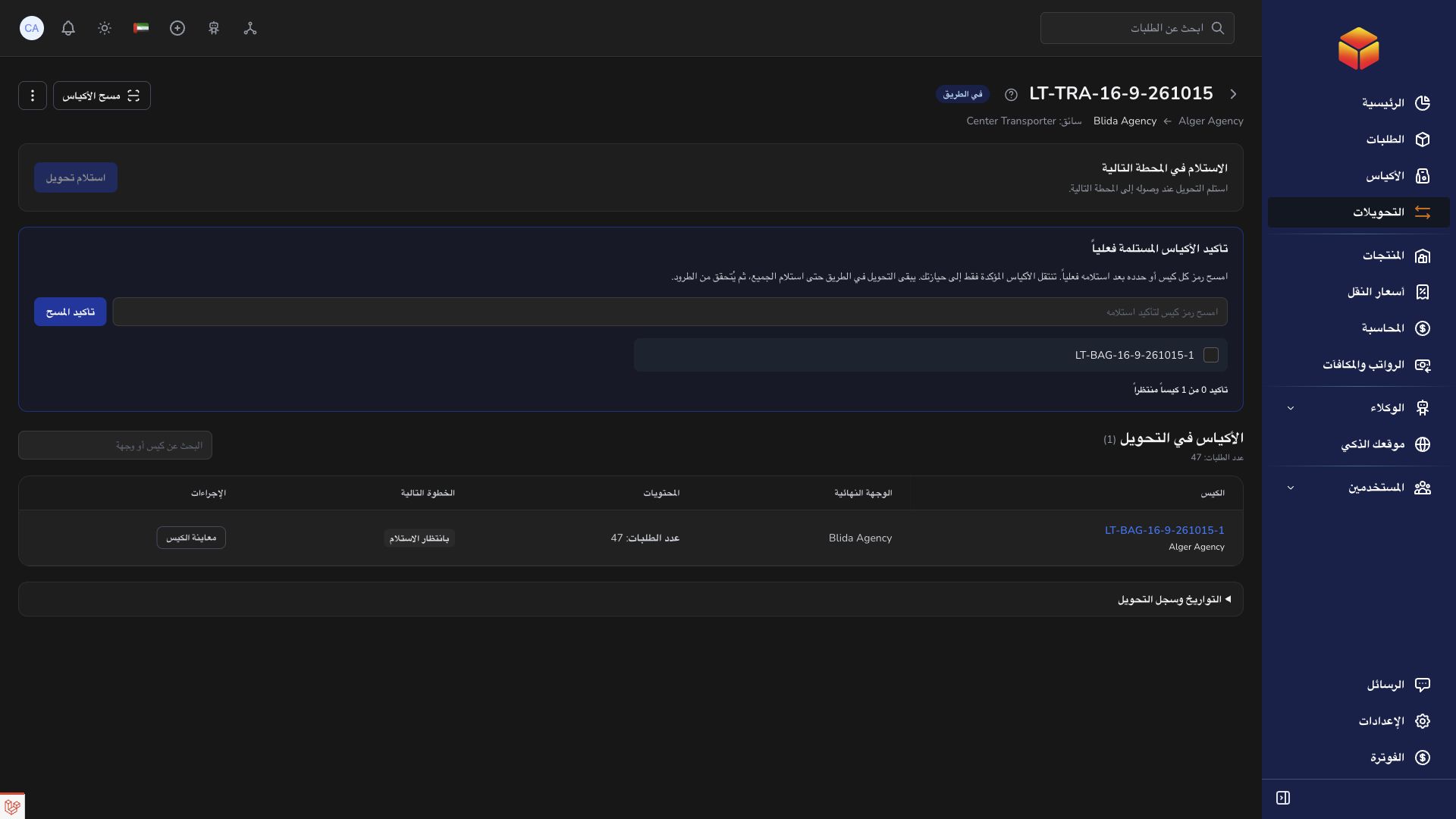
- At the destination, open the same transfer and choose Receive. The list-page Receive action brings you to the details so you can check individual bags.
- Select only bags physically received, or scan their exact bag codes in the receipt check. Review the chosen bag codes and count before confirming receipt.
- If only part of the load has arrived, receive that part. Those bags become received at your location; the transfer stays On the Road while other bags remain outstanding. Do not select absent bags to finish the movement.
- When the remaining bags arrive, repeat receipt for them. The transfer becomes Arrived after all outstanding bags have been received.
- Use each received bag’s next task. At its final agency, verify parcels and complete the bag; at a hub, keep it closed and arrange its next leg. Raise unresolved discrepancies with the transfer and bag references.
Correct or cancel before departure
Only an empty Planned or Loading transfer can be cancelled. Remove any included bags first and confirm they are ready at the departure location. Cancellation does not automatically unload a full transfer.
A departed transfer cannot be cancelled through this preparation action. If a vehicle has already left or a bag is missing, contact operations or support and preserve the actual handover history instead of recording an arrival that did not happen.
Receive bags first, verify parcels afterwards
Transfer receipt confirms that a particular bag arrived at the next location. It does not confirm every parcel inside it. Final parcel verification is a separate task at the bag’s final receiving agency.
Destination staff confirm receipt; the assigned transporter does not receive on their behalf. For a partial delivery, follow the still-outstanding bag codes individually and keep the receiving and sending teams informed.
Good to know
Record each action when the corresponding physical event occurs. After an interrupted response, reopen the manifest and check the recorded result before submitting the same handover again.
Application links
Application links require the appropriate account access. The destination is selected for your signed-in role.