Find transfers and inspect their bags
Find a transfer, read its route and manifest, and identify what the departure team, transporter and receiving team still need to do.
Overview
Find a transfer, read its route and manifest, and identify what the departure team, transporter and receiving team still need to do.
Understand the transfer journey
A transfer records one movement between an agency or hub and the next agency or hub. The sending team prepares the load, the transporter carries it, and the receiving team confirms the bags that physically arrive. A bag can use several transfers before reaching its final receiving agency.
Planned is a saved movement awaiting loading. Loading means its manifest is being prepared. On the Road follows departure. Arrived means every outstanding bag has been received. A partially received transfer remains On the Road until the remaining bags are accounted for through receipt.
Agency and hub teams manage loading at their own departure location and receive at their own destination location. Assigned transporters can inspect their transfer and record permitted loading and departure actions; they do not confirm receipt for the destination team. Your account’s permissions still determine the controls shown.
Steps
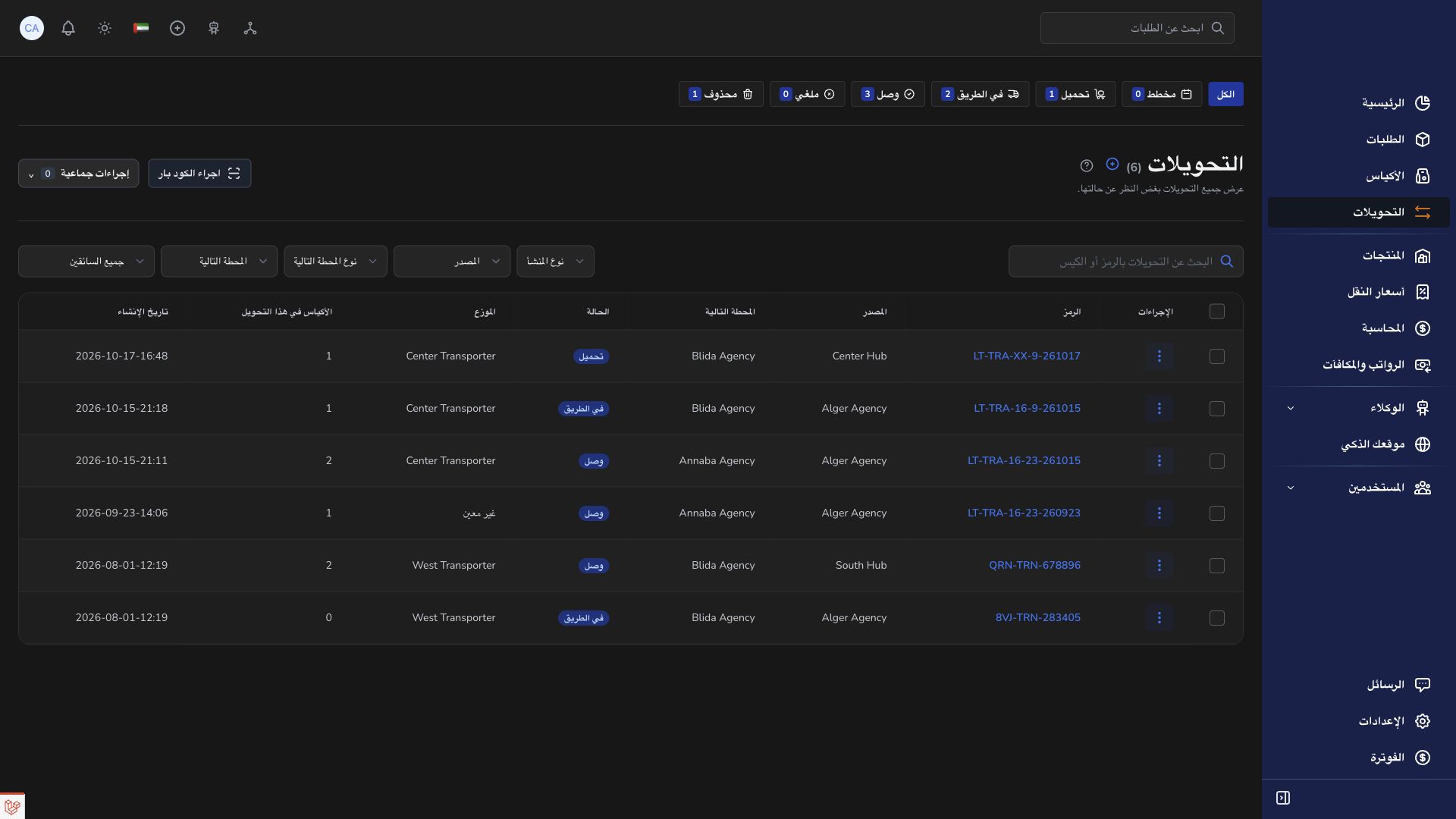
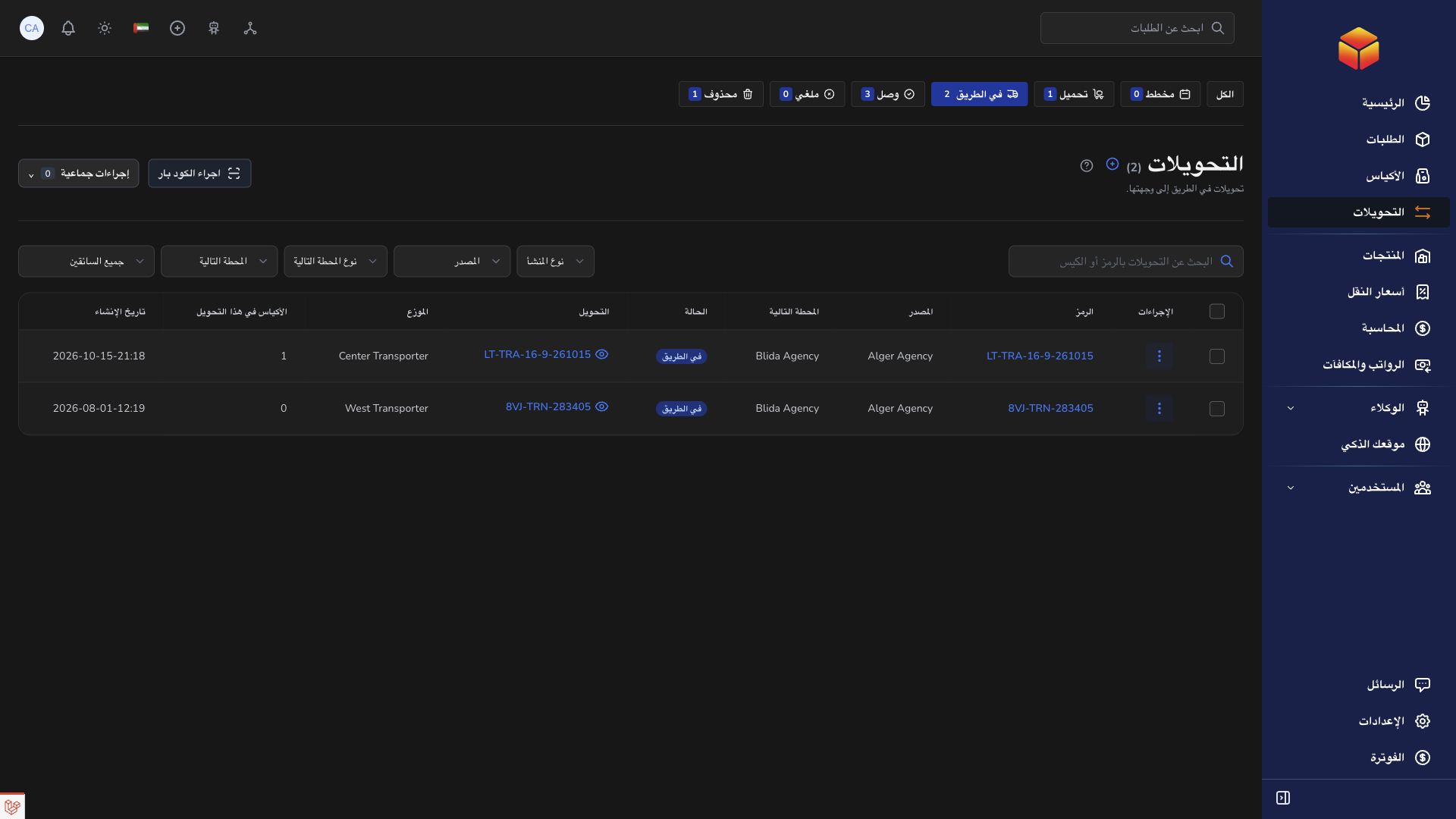
- Open Transfers. Use All to search broadly, or choose Planned, Loading, On the Road, Arrived or Cancelled for the stage you are handling. Deleted is available where your role permits it.
- Search using the transfer code or the code of a bag carried by it. Start with the beginning of the reference and remove unrelated filters if the movement is not found.
- Filter by origin type and location, next-stop type and location, or transporter where offered. On mobile, open Filters. Clearing these fields keeps the selected stage, so change the tab too when necessary.
- Open the transfer and compare its reference, departure location, next stop, transporter and status with the movement you are expecting.
- Search the manifest by bag code or agency information. Compare the listed bag codes and counts with the physical load; use Inspect bag to review its contents and route.
- Review the loading and receipt indicators for each bag. One received bag does not mean every bag on the transfer has arrived.
- Read the next task shown for received bags. At the final agency, continue to parcel verification; at an intermediate hub, prepare onward forwarding without final opening.
- Use the timeline and the bag loading or receipt information to understand the handover. Share the transfer code and affected bag codes when asking another team about a discrepancy.
Next stop versus final receiving agency
A transfer ending at a hub is complete when its own load is received there, even though those bags may still need another journey. For example, Agency A → Hub H and Hub H → Agency B are two transfers; Agency B remains the bag’s final destination.
Inspect bag opens a preview for review. It does not perform the Open action that releases checked parcels at the final agency.
What each team sees
An agency or hub sees movements involving its own location. The departure team manages the load and the receiving team confirms arrivals. A transporter sees assigned movements and their manifest, with status and reference search; location and driver filters offered to coordinators may not appear in that workspace.
After arrival, manifest views can separate bags needing final-destination work, onward forwarding or completed handling. Use these to choose the next task instead of reopening every bag indiscriminately.
Good to know
Read bag receipt indicators as well as the overall transfer state. If a bag is absent, check the reference, current filters and your location’s access before creating another movement.
Application links
Application links require the appropriate account access. The destination is selected for your signed-in role.