Connect EcoTrack and sync your orders
Connect a vendor’s EcoTrack account, choose how to send new orders, import existing shipments and follow their delivery or return progress in ColSuite.
Overview
Connect a vendor’s EcoTrack account, choose how to send new orders, import existing shipments and follow their delivery or return progress in ColSuite.
Information, statuses and handoffs
The vendor supplies the merchant context and recipient information, while the company and its assigned operational teams process the shipment. Check the customer phone, address, product quantities and amounts before sending an order into operations. A correctly entered address does not replace the organizational and route assignment shown on the shipment.
Order views include validation, transit, hub handling, roadmap or pickup work, delivery, completion and return stages. Suspended, canceled and deleted views identify different exceptions. The status history matters: two orders with similar customer information may be separate shipments at different stages. Use the barcode as the primary reference when contacting another team or asking the assistant for an exact page.
In forward bag preparation, only orders in transit or in hub are eligible. Return bags accept the supported in-hub and return stages. The order must belong to the bag’s company, match any assigned destination agency, have no current bag and be held at the bag’s preparation location. If a parcel fails these checks, inspect its current assignment instead of changing unrelated information to force it into a bag.
Steps
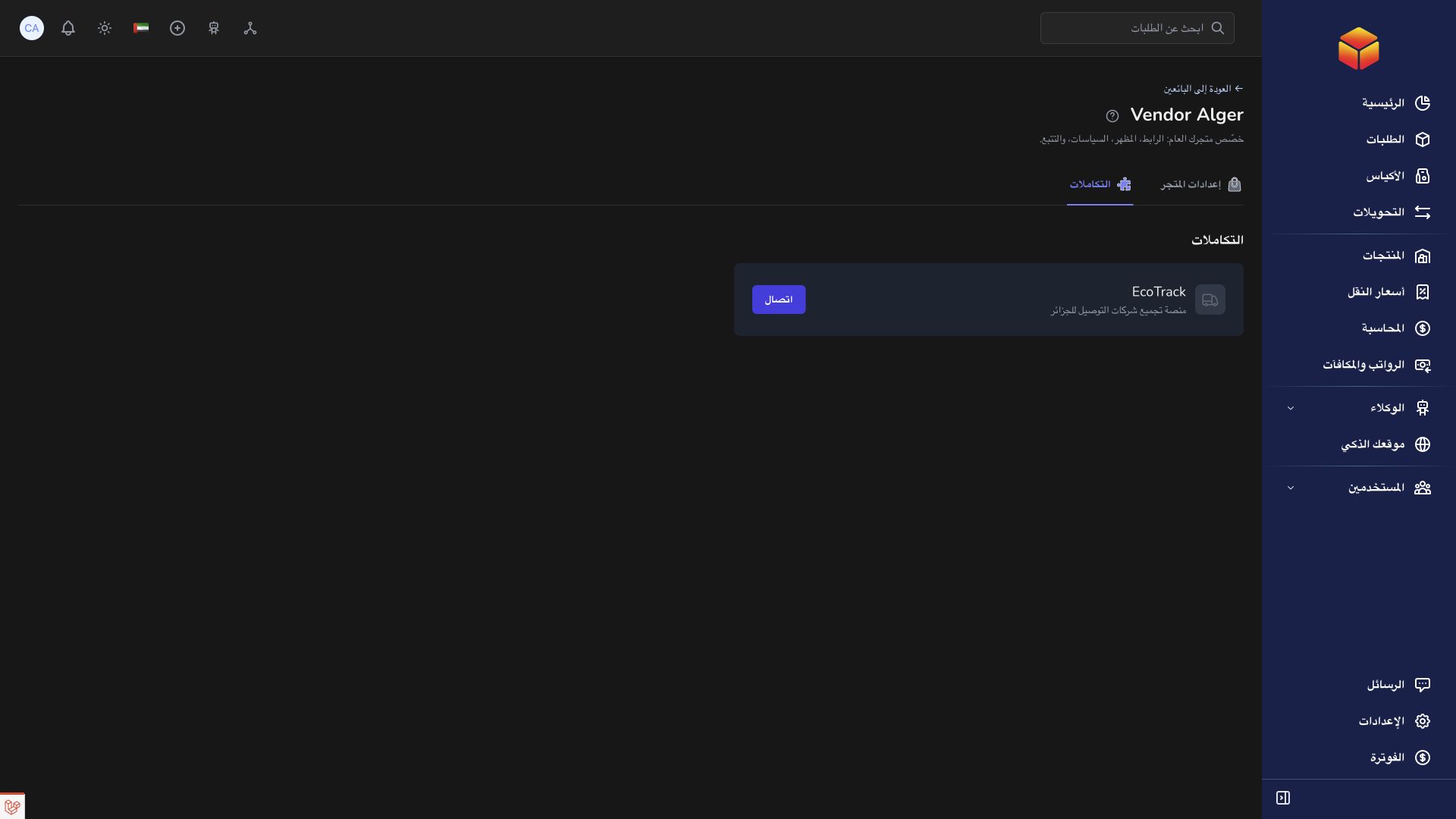
- As a vendor, open Settings and find the EcoTrack card. As an authorized company user, open the intended vendor’s store settings and find that card. Check the vendor before connecting: each connection applies to that vendor’s orders.
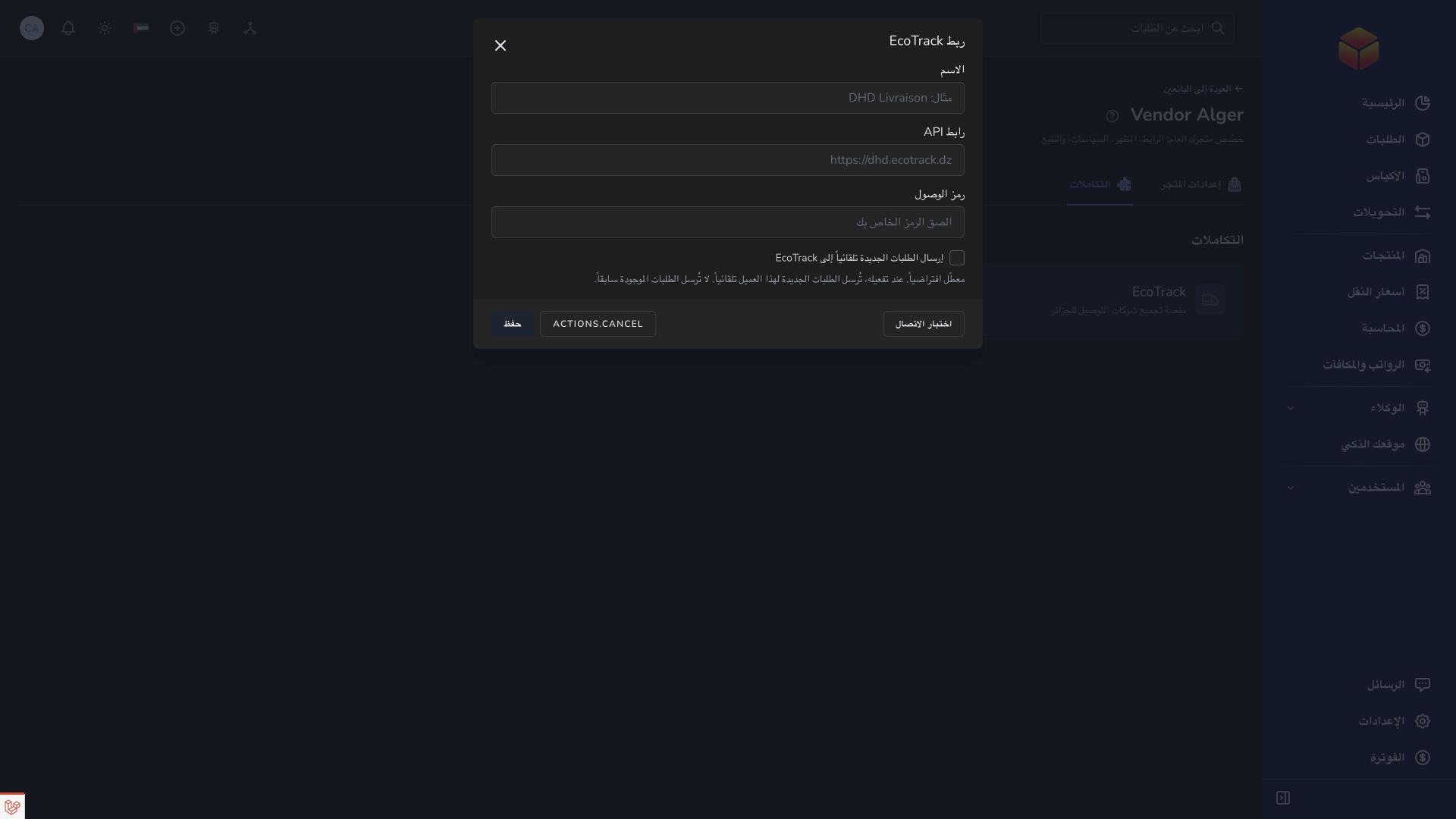
- Select Connect. Enter a recognizable connection name, the service address in the API URL field and the Bearer Token supplied for your EcoTrack account. Keep this token private. Select Test Connection, then Save after a successful result.
- Choose how to send orders. In EcoTrack Settings, enable automatic sending when orders enter In Validation, then Save. It is off by default. Orders received from your store remain unsent while Created.
- To send manually, find the order in Orders and select its EcoTrack push action. For several orders, select them and choose Push to EcoTrack where offered. Review the outcome for each order and confirm that an EcoTrack tracking reference appears.
- To bring shipments from EcoTrack into ColSuite, select Pull Orders on the EcoTrack card. Allow time for the import, then check Orders and clear filters if needed. This button imports recent shipments; it is separate from sending orders.
- Open a linked order to follow its status and tracking notes. Use the EcoTrack tracking icon to inspect the carrier’s tracking page. Keep both the ColSuite barcode and EcoTrack tracking reference when asking for help.
Manual sending and automatic sending
With automatic sending off, saving a new order does not send it to EcoTrack. Use the push action when you are ready. A successful push links the order to an EcoTrack shipment and moves the order to In Validation.
With automatic sending on, an unlinked order is submitted in the background when it moves into In Validation, or is created directly in that status. Store orders in Created are not sent until they enter In Validation. Allow a short wait and check for the tracking reference. Switching the option on does not send orders already in In Validation; send those manually if needed. Orders imported from EcoTrack are not sent back as new shipments.
You can turn automatic sending off again in Settings and Save. Already linked orders continue to receive tracking updates while the connection remains active. If automatic sending failed, review the order and check EcoTrack before attempting a manual push.
Check the recipient, destination and amount before sending
Provide the recipient’s name, delivery address, phone number, wilaya, commune, order type and amount to collect. Phone numbers must contain 9 or 10 digits. Names, addresses, commune names, product descriptions and remarks must stay within 255 characters.
Choose the correct Algerian wilaya and an active commune recognized by your EcoTrack provider. The integration can match supported French and Arabic commune names, but a familiar-looking name may still be unavailable for that provider or wilaya.
Confirm the collection amount, including delivery charges, and the intended service: home delivery, stop desk, pickup or exchange. Read the order’s amount carefully before sending it; a tracking status does not verify the amount for you.
What is sent about products
EcoTrack receives the product description written on the order. Sending an order does not upload your product catalogue or ask EcoTrack to prepare it from stock held by the provider. Review that description before sending, especially when an order contains several items.
Import recent EcoTrack shipments
Pull Orders requests shipments from the last 30 days. It is a manual action, not a scheduled import of every new shipment created in EcoTrack. Older shipments may need assistance from your administrator.
Imported shipments are linked to EcoTrack so they can be followed from ColSuite. Already known tracking references are recognized rather than intentionally imported as new shipments. Some canceled or final-return records are excluded from new imports, so this is not a complete archive of your EcoTrack history.
If a shipment is missing, check its creation date, the connected account and the current order filters. Compare tracking references before repeating the import or creating another order.
How automatic tracking works
Once an order is linked, ColSuite checks EcoTrack tracking activity on an hourly schedule while the integration is active. Updates are not instant and can take longer when the service is delayed. The hourly check follows known shipments; it does not send unlinked orders or import new ones.
Recognized EcoTrack statuses update the linked order and tracking activity is added as notes. The order can move between delivery, return and cancellation stages; it is not restricted to moving forward through the delivery list. For example, In Delivery can become Returning and then Returned.
Automatic checks stop when EcoTrack reports Complete, Returned or Canceled. Complete here means the delivery outcome, not necessarily Completed in your accounting workflow. Financial settlement must be checked separately. Later carrier corrections after one of these outcomes may require assistance.
Edits, cancellation and deletion
Changing an order’s recipient, address or other details in ColSuite after sending does not automatically change the EcoTrack shipment. Confirm any required correction with your EcoTrack provider and keep the tracking reference.
Changing a local order status, canceling it or deleting it in ColSuite does not automatically cancel or delete the shipment in EcoTrack. Check the shipment with the provider before treating the parcel as stopped. A shipment deleted in EcoTrack is not automatically deleted from ColSuite.
Resolve a failed send or a missing update
For a commune error, verify the wilaya first, then use the active commune name accepted by your provider. If the destination is unavailable, ask the provider or your administrator to confirm coverage instead of repeatedly sending the same values.
For a connection error, open Settings and check the service address and credentials, then use Test Connection. A successful connection test does not confirm that every order’s destination or recipient information is valid.
If a send is interrupted or the result is unclear, look for the shipment in EcoTrack and check for a tracking reference in ColSuite before retrying. Do not create a second order just to repeat a failed action.
If tracking appears stale, open EcoTrack’s tracking page, check whether the shipment has reached a final outcome and allow time for the next hourly check. If it remains inconsistent, contact your administrator or Support with both references, the expected status and the exact error message. Never include your Bearer Token in a ticket or screenshot.
Update settings, pricing or the connection
Use Settings on the EcoTrack card to change the connection or automatic-sending choice. Leave the token field empty when you want to keep the current token, then Save.
Sync Pricing is a separate action that retrieves the provider’s delivery charges by wilaya. Review the resulting tariff before relying on it for new orders; it is not a shipment-status refresh.
Disconnect removes the connection and stops its automatic sending and tracking. It does not cancel parcels already entrusted to the provider. Coordinate any outstanding shipments before disconnecting.
Good to know
The connection is vendor-specific. With automatic sending enabled, moving an order into In Validation submits it to EcoTrack. Check the recipient and shipment information before validating. If an action is unavailable to your account, ask an authorized vendor or company administrator to handle it.
Application links
Application links require the appropriate account access. The destination is selected for your signed-in role.