Print labels and order or roadmap documents
Printing controls generate labels and operational documents for the selected orders that remain accessible to your account.
Overview
Printing controls generate labels and operational documents for the selected orders that remain accessible to your account.
Information, statuses and handoffs
The vendor supplies the merchant context and recipient information, while the company and its assigned operational teams process the shipment. Check the customer phone, address, product quantities and amounts before sending an order into operations. A correctly entered address does not replace the organizational and route assignment shown on the shipment.
Order views include validation, transit, hub handling, roadmap or pickup work, delivery, completion and return stages. Suspended, canceled and deleted views identify different exceptions. The status history matters: two orders with similar customer information may be separate shipments at different stages. Use the barcode as the primary reference when contacting another team or asking the assistant for an exact page.
In forward bag preparation, only orders in transit or in hub are eligible. Return bags accept the supported in-hub and return stages. The order must belong to the bag’s company, match any assigned destination agency, have no current bag and be held at the bag’s preparation location. If a parcel fails these checks, inspect its current assignment instead of changing unrelated information to force it into a bag.
Steps
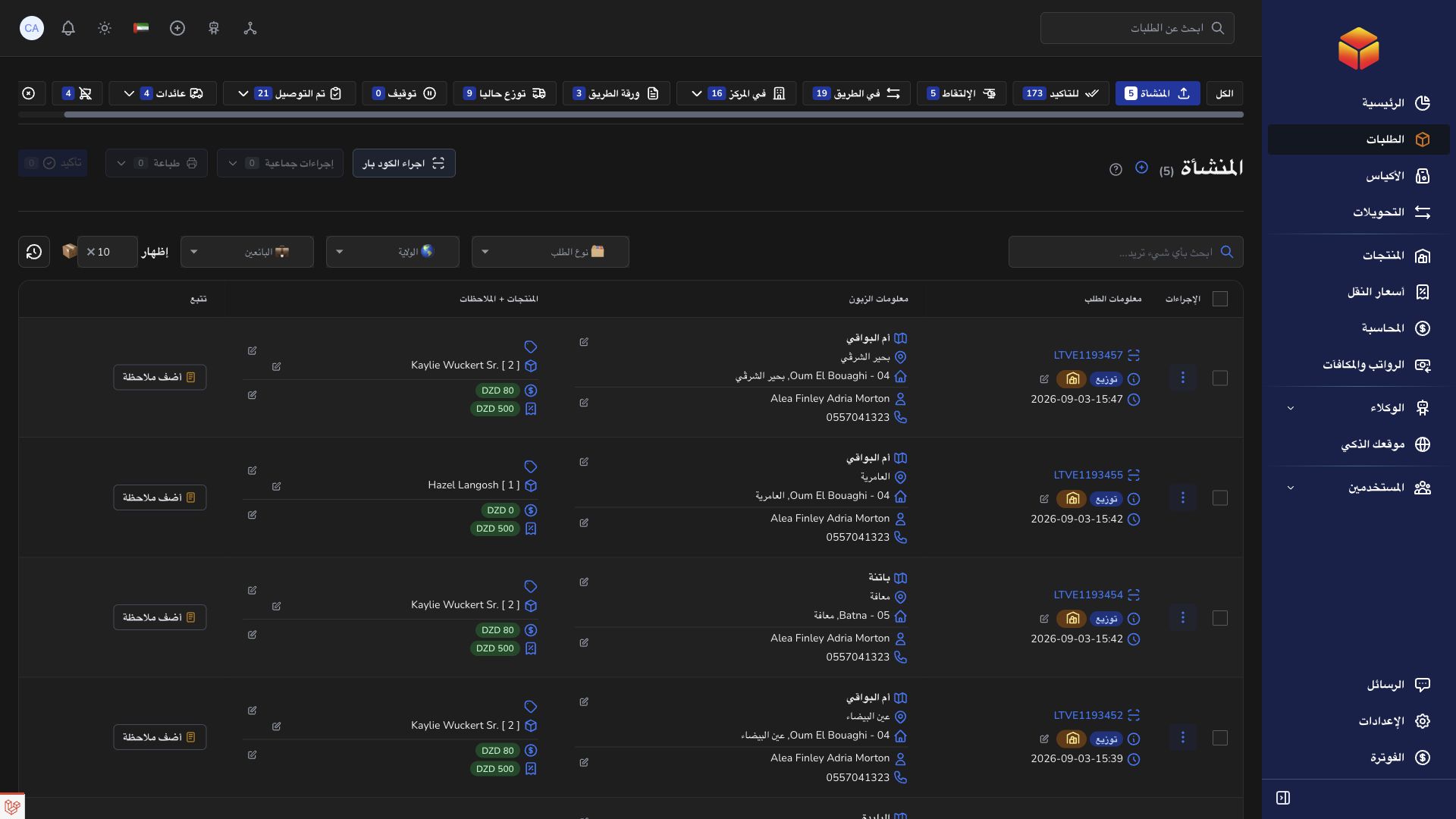
- Find and select the intended orders. Check the selection count and filters before opening the print or download menu.
- Choose A4 or A6 for the supported label format, or PDF for the order document. For a roadmap, use the roadmap creation or existing roadmap printing workflow with the appropriate transporter and reference.
- Open the generated document and verify that the barcode, recipient and parcel count match the physical shipments.
- Choose a printer and paper size matching the selected format. Keep the barcode readable and attach each printed label to the matching parcel.
- If the selection changed or the download is no longer available, return to the list, verify access and create a fresh download from the current selection.
Good to know
Selection downloads are tied to the signed-in account and their link is short-lived. Printing a label or downloading a PDF does not itself change delivery status, verify a bag or record a payment.
Application links
Application links require the appropriate account access. The destination is selected for your signed-in role.