Choose a ticket priority and share evidence
A useful priority and precise evidence help support understand the business impact and investigate the right records.
Overview
A useful priority and precise evidence help support understand the business impact and investigate the right records.
A complete request and a clear follow-up
Support is for a tracked request about an application problem or an operational question that needs investigation. Before creating a ticket, check the relevant guide and any existing ticket for the same incident. One complete conversation is easier to investigate than duplicate requests containing different pieces of evidence.
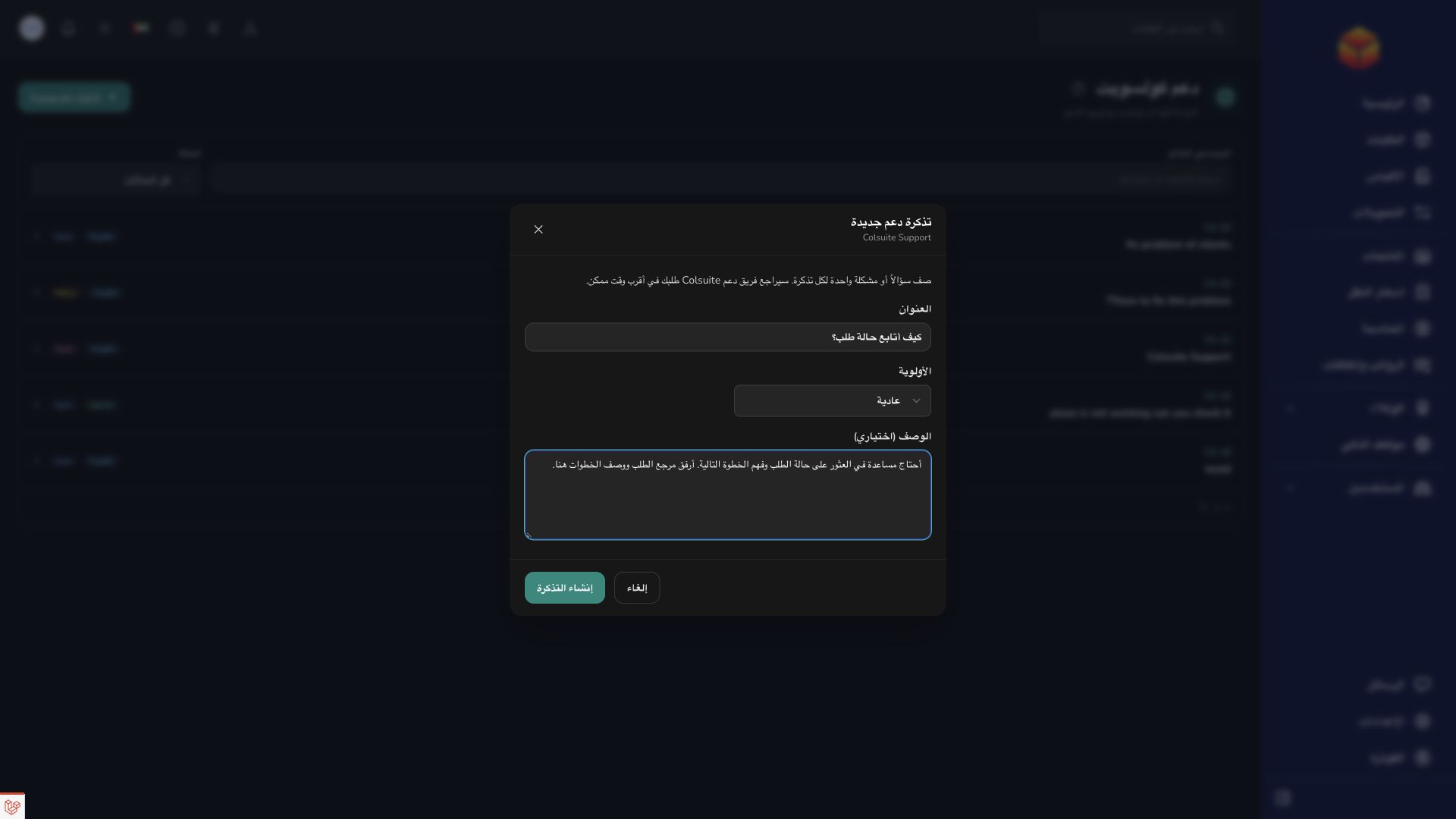
Use a short, specific title, then describe the impact, expected result, actual result and steps taken. Include the relevant page URL and exact order barcode, bag reference or transfer reference. An approximate incident time and a carefully cropped screenshot help locate the problem. Do not include passwords, access tokens or unrelated customer information.
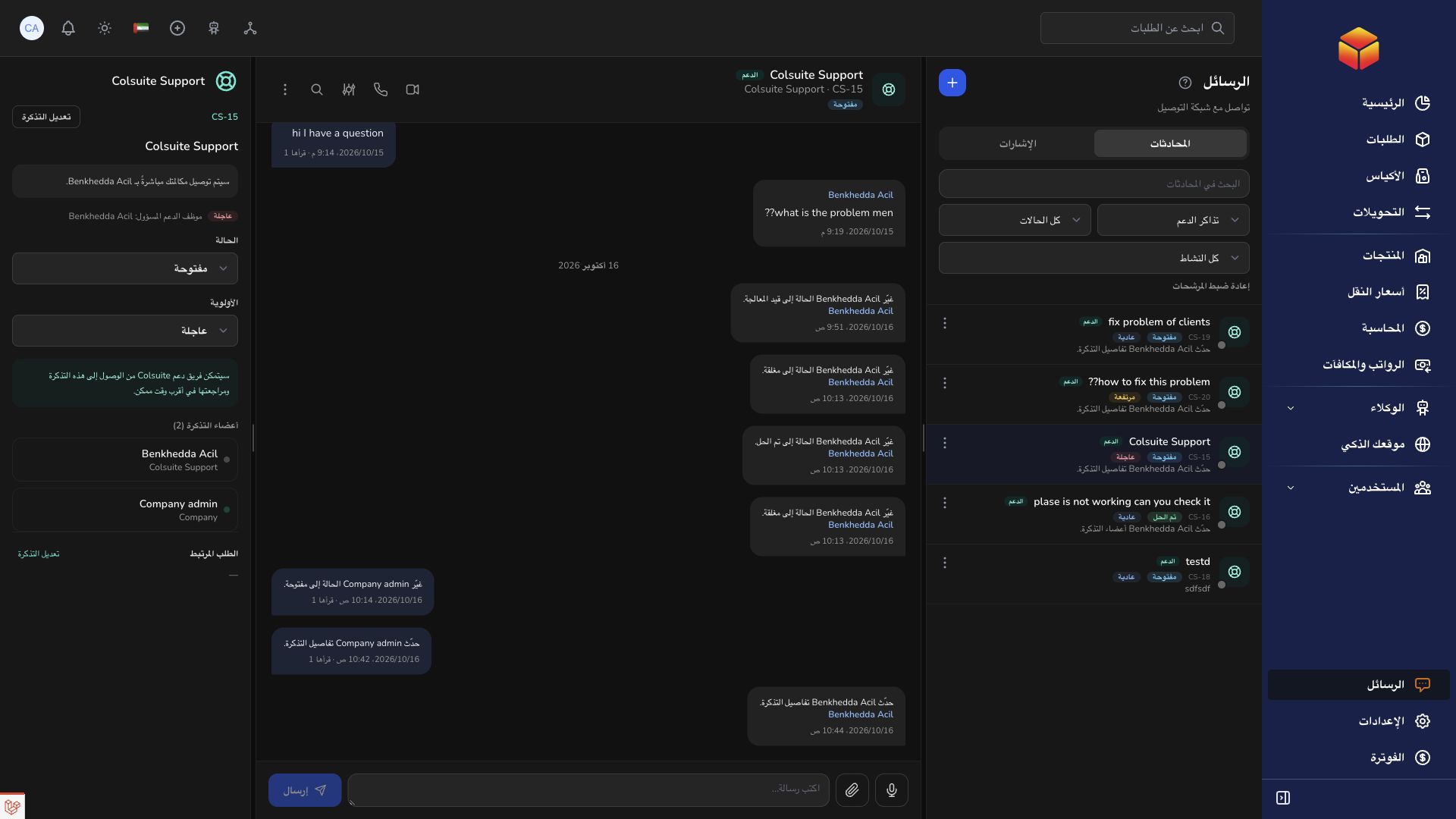
Statuses distinguish open, in progress, on hold, waiting for response, resolved and closed work. Waiting for response means you should read the latest request and supply the missing information. Priorities low, normal, high and urgent communicate impact; they are not a guaranteed response deadline. Keep replying in the existing ticket and confirm whether a proposed resolution actually works.
Steps
- Choose low, normal, high or urgent according to the actual effect on your work, then explain that effect in the description.
- Write the record reference, page URL, time of the incident and the steps that led to it.
- Send a screenshot or attachment through the ticket conversation after creating the ticket. Hide information unrelated to the issue.
- Answer follow-up questions in the same ticket and describe whether the proposed solution worked.
Good to know
A priority is a description of impact, not a promised response deadline. Never share passwords, access tokens or another organization’s private records.
Application links
Application links require the appropriate account access. The destination is selected for your signed-in role.