Connect vendor users to their workspace
Assign vendor users to the correct vendor organization so their account shows the right records.
Overview
Assign vendor users to the correct vendor organization so their account shows the right records.
Vendor records, products and operations
A vendor is the merchant connected to the delivery company. The vendor record holds the business context, and individual users are assigned to it. Multiple people may work for one vendor; creating duplicate vendor records for each login fragments the operational and accounting history.
Products and orders should be connected to the intended vendor. Check the assignment before saving, especially when several merchants have similar names. Store settings describe the shopping experience, while Orders records the shipments handled by the logistics network. A public store URL is different from the private vendor settings page.
The company, agencies, hubs and transporters complete the permitted handoffs after an order enters operations. The vendor follows progress using the barcode and available history, then uses the conversation or support channel to raise a discrepancy. Review the vendor’s accounting entries separately from delivery status before interpreting balances or settlement.
Steps
- Confirm that the vendor record already exists.
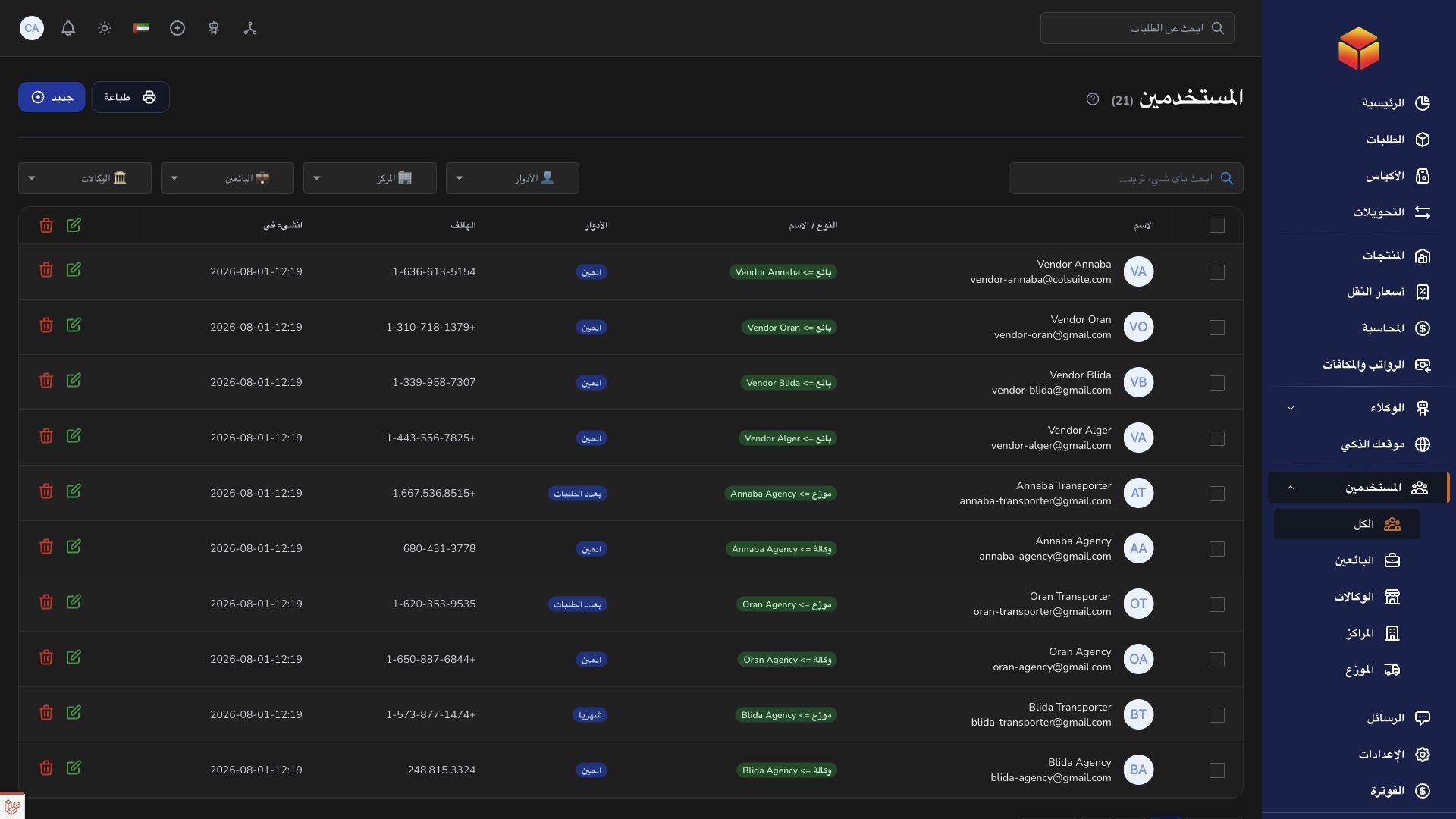
- Open Users and create or edit the intended account.
- Choose the vendor role and the correct vendor assignment from the available options.
- Save and confirm that the user can access their vendor orders, products and settings as permitted.
Good to know
A similarly named vendor can belong to a different organization. Check the assignment carefully before saving access changes.
Application links
Application links require the appropriate account access. The destination is selected for your signed-in role.