Create your company website with AI
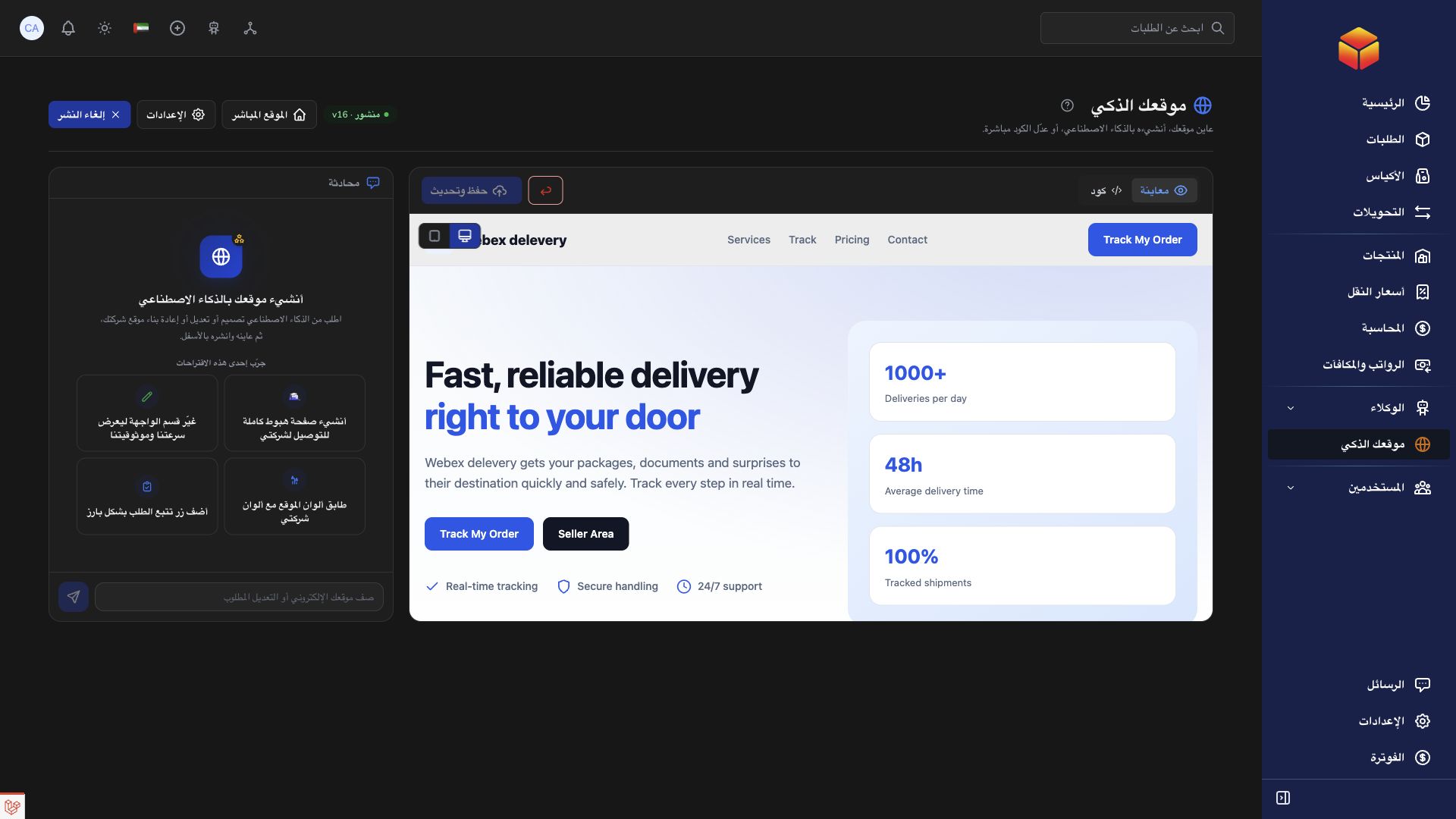
Build a public company presentation with your branding, services, coverage areas and order tracking, using a conversation with the website assistant.
Overview
Build a public company presentation with your branding, services, coverage areas and order tracking, using a conversation with the website assistant.
Choose the right workspace
Use the everyday AI assistant to ask questions, find information and propose supported order changes. Review its cited guide or record link and check the confirmation card before approving an order action.
AI Website is a separate company workspace for creating and improving the public company website. Its saving and publishing controls have their own effects: saving changes to a published website can update it immediately.
Operational agents are ongoing automations with conditions, timing and an execution mode. Preview their matching work, review the actions and choose whether changes are simulated, require approval or run automatically where supported.
Steps
- Sign in with your company account and open AI Website. This builder belongs to the company workspace; vendors, agencies, hubs and transporters do not manage the company website from their own workspaces.
- Review your company information and branding in Settings before starting. Check the company name, logo, contact details and social links. The assistant can use the information already available for your company.
- Describe the website you want in the chat: the intended visitors, language, preferred colors, tone and the sections you need. For example: ‘Create a French website for our delivery company with our logo, services, delivery regions, contact details and a prominent Track my order button.’
- Send your request and wait for the assistant to finish. Selecting a suggestion fills the message field; you still need to send it. Read the assistant’s recap and check the refreshed preview.
- Ask for focused improvements, then review the result on desktop and mobile before deciding to publish. A new website stays unpublished until you publish saved content.
Give useful instructions
Explain what visitors should do first: track a parcel, discover your delivery services or contact your team. Ask for a clear opening section, services, coverage, contact information and a footer rather than requesting an unspecified ‘professional website’. State which language you want for the website; the language of your account alone is not a translation request.
The assistant can consult your company’s configured services, delivery prices and covered regions. Ask it to use those details and review every commercial claim. If information is missing, provide the correct wording or complete the company settings instead of accepting invented promises, unsupported delivery times or sample prices.
Understand the result
The builder creates a public presentation page for your company. Keep order tracking visible so visitors can reach the existing tracking page. Ask for simple sections and navigation within the presentation. Complex booking systems, payment journeys or interactive embedded services are outside the purpose of this builder.
The assistant can save the changes it creates. Check the preview and the save confirmation rather than assuming every chat response changed the website. On an already published website, saved changes can appear publicly immediately; unpublish first if you want to prepare a private revision.
Good to know
A preview is not a public launch. Publishing uses your company’s configured public domain; the builder does not purchase or register a domain.
Application links
Application links require the appropriate account access. The destination is selected for your signed-in role.