Preview and improve your company website
Review your website on desktop and mobile, request precise changes and verify company information before customers see it.
Overview
Review your website on desktop and mobile, request precise changes and verify company information before customers see it.
Choose the right workspace
Use the everyday AI assistant to ask questions, find information and propose supported order changes. Review its cited guide or record link and check the confirmation card before approving an order action.
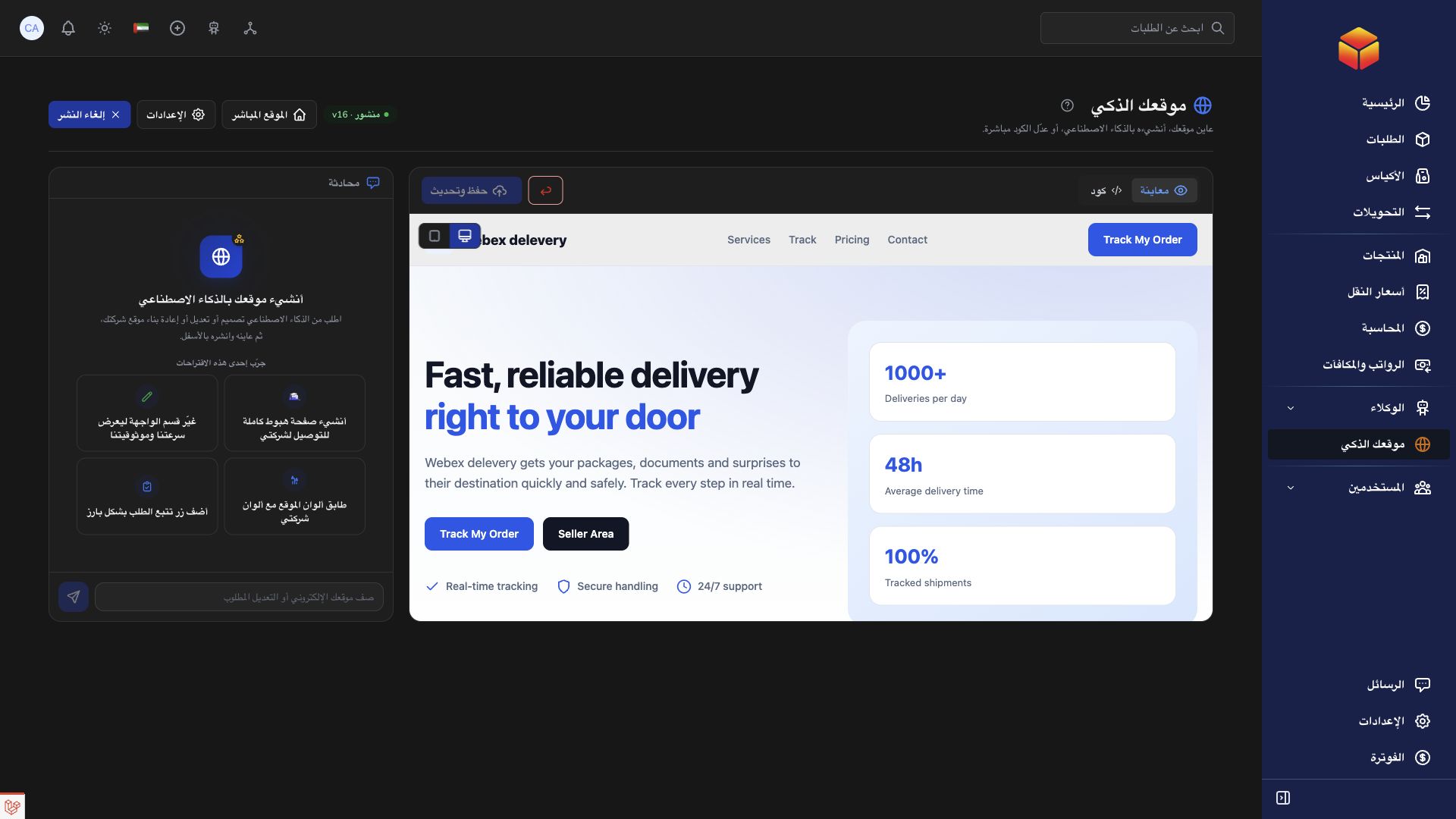
AI Website is a separate company workspace for creating and improving the public company website. Its saving and publishing controls have their own effects: saving changes to a published website can update it immediately.
Operational agents are ongoing automations with conditions, timing and an execution mode. Preview their matching work, review the actions and choose whether changes are simulated, require approval or run automatically where supported.
Steps
- Open AI Website in your company workspace and check whether the website is published or still a draft. If it is published and you want to work privately, unpublish it before asking the assistant to save changes.
- Choose Preview and use the desktop and mobile controls. Review the opening section, headings, services, pricing, contact details and footer in both sizes.
- Ask for one specific improvement at a time. For example: ‘Keep the current design, shorten the introduction, make the tracking button easier to find and improve the service cards on mobile.’
- Wait for the assistant’s reply and the refreshed preview. Read the recap, then check the actual result rather than relying only on the message.
- Repeat the review after each change. Before publication, open your company settings if a logo, contact detail or other company information needs correction.
Use a customer checklist
Start with the visitor’s first impression: the company name should be recognizable, the purpose of the service should be clear, and the tracking action should be easy to find. Check that text is readable over background images and that important details are not crowded together.
On mobile, look for cut-off headings, oversized pictures, narrow buttons and sections that require unnecessary sideways movement. Read through the entire page, including the footer. Device previews help you compare layouts, but also check the published site on a real phone before sharing it widely.
Confirm that contact details, social links, coverage regions and any displayed prices are correct. Company contact and branding details used by the page can reflect changes in your company information, while descriptive text and commercial sections still need a review when your services change.
Keep revisions controlled
Say what should remain unchanged as well as what should improve. ‘Keep the colors and section order; rewrite only the contact section in Arabic’ is easier to review than a request to redesign everything. Ask for corrections if the assistant reports that it could not save; do not assume the previous request succeeded.
The version number indicates that the website has changed. It is not a restore button or a list of recoverable versions. Reset is also not an undo action: it replaces your current design with the default presentation and takes the website offline until you publish again.
Good to know
There is no separate private revision of an already published site: a saved AI change updates the same website that visitors can see. Unpublish before preparing changes you do not want live yet.
Application links
Application links require the appropriate account access. The destination is selected for your signed-in role.